


I’ll be honest — my own agency website was embarrassing me.
I spend my days telling clients that a slow site costs them customers, and then I’d open Google PageSpeed Insights on makensearch.com and see an 89. Not terrible. Not bad enough to panic about. But definitely not the number a guy who sells website optimization should be showing people.
So last week I finally sat down and fixed it. No new hosting, no rebuild, no developer, no code. One plugin, about five minutes of settings, and the score went to 98 on desktop and 95 on mobile.
The part I think matters most: this site runs on shared hosting. Cheap, ordinary, nothing special. Every speed guide online seems to assume you’ve already moved to a $50/month server. I hadn’t. I still got there.
This post is the whole thing written down — what I started with, exactly which settings I chose and why, what the numbers looked like after, and honestly, what I’d tell you to do differently if your situation isn’t like mine.
Why a slow site actually costs you
Before the how, a quick word on why this is worth five minutes of your time.
Google has said plainly that page experience is part of how it ranks pages. That’s the SEO reason, and it’s the one people quote. But the reason I actually care is simpler and less abstract: people leave.
Google’s own research on mobile browsing found that as load time climbs from one second toward three seconds, the chance of someone bouncing rises sharply. Past five seconds it gets ugly. And these aren’t cold visitors — these are people who searched for what you do, clicked your result, and then left because a spinner outlasted their patience.
If you sell anything, that’s revenue evaporating before your page even renders. If you run ads, it’s an impression that never happened. Either way, a slow site is you paying for traffic you never actually receive.
That’s the frame I’d hold onto. Speed isn’t a vanity score. It’s the difference between a visitor and a customer.
Where my site was starting from
Here’s the honest baseline:
- Desktop: 89 — decent, just below Google’s “good” threshold of 90
- Mobile: not much worse, but soft in the same places
The culprits were the usual suspects on any WordPress site built with a page builder — render-blocking CSS and JavaScript, images heavier than they needed to be, and no meaningful caching. Nothing exotic. Nothing broken. Just the accumulated weight that every WordPress site picks up over a couple of years.
That’s worth saying out loud, because if you’re sitting at 40 or 55, don’t feel behind. Sites in that range usually have more to gain from this than mine did. I was starting from a good place and still found ten points.
The tool I used
I used Seraphinite Accelerator. There’s a free version on the WordPress plugin repository, and a Pro/Extended version that adds the heavier optimizations.
Why this one over WP Rocket, LiteSpeed Cache, or Perfmatters? Two reasons.
First, it’s genuinely good at the hard part. Most caching plugins handle caching well and then fall apart on critical CSS and JavaScript deferral — the stuff that actually moves your Largest Contentful Paint. Seraphinite handles that automatically instead of making you hand-build a critical CSS file.
Second, its setup wizard asks about your server. That sounds minor. It isn’t. A shared-hosting site and a dedicated server need genuinely different optimization strategies, and most plugins apply identical settings to both — which is exactly why people on cheap hosting install a speed plugin and end up slower.
Fair warning: I’m not going to pretend the free version gets you to 98. It helps, and it’s a real improvement over nothing. But the Extended version is what pushed my score into the high 90s. If you’re happy at 80, free is fine. If you want 90+, budget for Pro.💡
The setup, step by step
This is the entire process. It took me about five minutes.
- Install the free plugin In your WordPress dashboard go to Plugins → Add New Plugin, search for Accelerator, then install and activate Seraphinite Accelerator.
- Download the Extended version Open the plugin settings and you’ll see a prompt to download the Extended version. You can grab it there or straight from the developer’s site. It arrives as a
.zipfile. - Upload and activate it Back to Plugins → Add New Plugin → Upload Plugin, choose the zip, install, activate. The free and extended parts work together — you’re not replacing anything.
- Activate your Pro license Return to the settings and enter your license key.
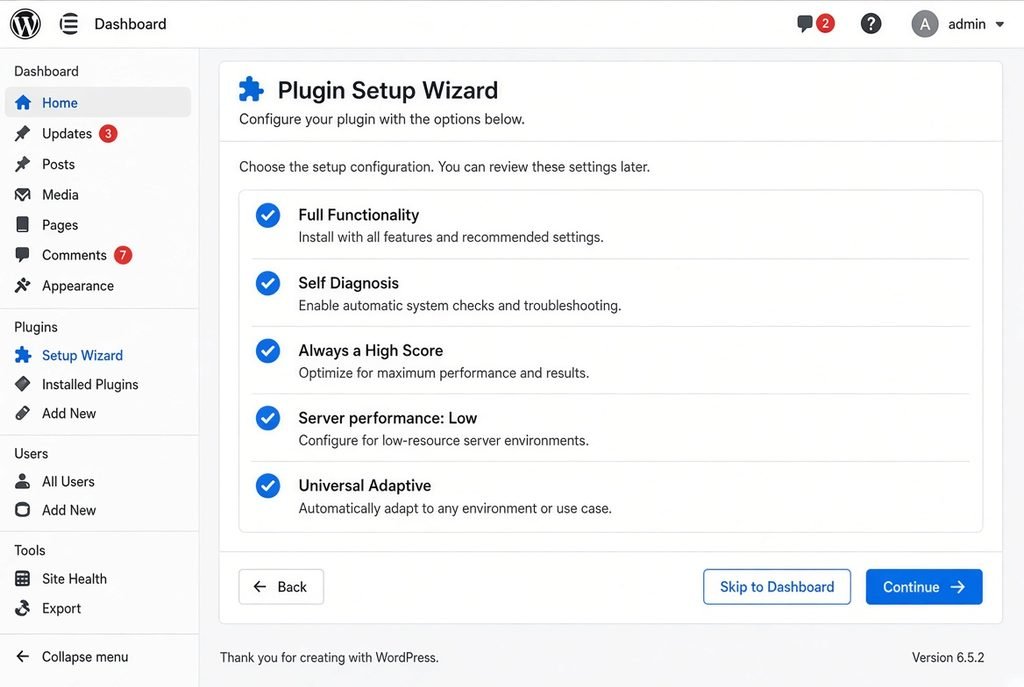
- Run the Setup Wizard This is the step that actually matters. My choices:
- Full Functionality — turns on the complete optimization set rather than caching alone
- Self Diagnosis — lets the plugin test your setup and warn you about conflicts before they break something
- Always a High Score — optimizes aggressively for measured performance
- Server performance: Low — because I’m on shared hosting (read the note below before you copy this)
- Universal Adaptive — adapts delivery to the visitor’s device and browser
- Clear the cache properly Go to the Manager section, choose Revalidate Cache, then Delete Cache. Skip this and you’ll be testing your old, unoptimized pages and wondering why nothing changed.
That’s it. No functions.php, no .htaccess, no CDN configuration.
The one setting people get wrong: “Server performance: Low” is not a downgrade. It tells the plugin your server has limited resources, so it should do the heavy optimization work in careful background batches instead of all at once. Choose High on shared hosting and you risk timeouts, failed cache builds, or an angry email from your host about CPU usage. Match this honestly to what you’re actually paying for.
The results
I cleared the cache, waited for it to rebuild, and ran PageSpeed Insights again:
| Before | After | |
|---|---|---|
| Desktop | 89 | 98 |
| Mobile | Below 90 | 95 |
Both in Google’s green “good” band, from a five-minute plugin setup, on shared hosting.
And here’s the part most tutorials leave out: I wasn’t even finished. I hadn’t updated all my plugins. I still had a few I don’t use and should delete. There’s leftover page-builder markup on some templates. Every one of those is points still on the table.
I’m telling you that because I want you to trust the number. If someone shows you a perfect 100 and no loose ends, they either rebuilt the site or they’re only testing the homepage.
What to do after the plugin
A caching plugin is the biggest single win, not the whole job. Once yours is running, these are the next highest-value things — roughly in order of effort-to-payoff:
- Update everything. Plugins, themes, and PHP. Newer PHP versions are meaningfully faster, and this costs you nothing but a backup first.
- Delete plugins you don’t use. Not deactivate — delete. Every active plugin can add CSS and JavaScript to every page, including pages that never use it.
- Fix your images. This is usually the biggest remaining chunk. Compress them, serve WebP, and make sure they’re sized for their container instead of a 3000px photo squeezed into a 600px slot.
- Add a CDN. Cloudflare’s free tier is enough for most small sites and it helps a lot if your visitors aren’t near your server.
- Audit your page builder. Nested sections and unnecessary containers generate real markup weight. Simplify where you can.
One last thing, and I mean this: stop at 90+. Chasing a perfect 100 usually means disabling things your visitors actually want. A fast site that works beats a perfect score that broke your contact form.
Common questions
Does this really work on shared hosting?
Yes. This site is on shared hosting and hit 98 desktop. Choose “Low” for server performance and let it work in the background.
Do I need the Pro version?
The free plugin helps. Pro is what gets you into the 90s. Try free first — if you land at 80 and want more, upgrade then.
Will this break my site?
Aggressive optimization can occasionally cause visual glitches. Clear the cache, then check your homepage, a blog post, and any form or checkout page. If something looks off, disable one optimization group at a time until you find it. Take a backup before you start.
Can I use this alongside another caching plugin?
No. Two caching plugins will fight each other and make things worse. Pick one.
Does a higher PageSpeed score guarantee better rankings?
No, and be suspicious of anyone who says otherwise. Page experience is one signal among many. Content and relevance matter more. Speed helps you compete — it doesn’t replace being the better answer.
Why is my mobile score lower than desktop?
That’s normal. Mobile tests simulate a slower CPU and network on purpose. Judge mobile against mobile.
Wrapping up
Website speed is one of the few technical fixes where a small, cheap, one-time effort produces a result you can actually measure. Five minutes, one plugin, and my site went from acceptable to fast — without new hosting and without touching a line of code.
If your site feels sluggish, run it through PageSpeed Insights right now and write down the number. Then try this. Even if you land at 85 instead of 98, that’s a real improvement for every single person who visits you.
This is Makensearch — helping you build, optimize, and grow better websites.
I recorded the whole process on video too, if you’d rather watch than read. And if you try this, tell me your before-and-after numbers in the comments — I’m genuinely curious how it performs on different hosting.🔗
Affiliate disclosure https://tinyurl.com/53ndthez
Some links in this post are affiliate links. If you purchase through them I may earn a commission at no extra cost to you. I only recommend tools I’ve actually used on my own sites.


